
RugWard Pay
Merchant setup
Sign in with your wallet, add receiving addresses, choose the coins you accept and accept the merchant terms. Takes about two minutes.
On this page
1. Sign in with your wallet#
Open rugward.com/pay/merchant. There is no password and no email. You sign a short text message with a wallet you control:
- EVM wallet (MetaMask, Trust, Rabby, Coinbase Wallet and others, through the same wallet connector as the rest of RugWard), or
- Solana wallet that can sign messages (Phantom, Solflare or Backpack).
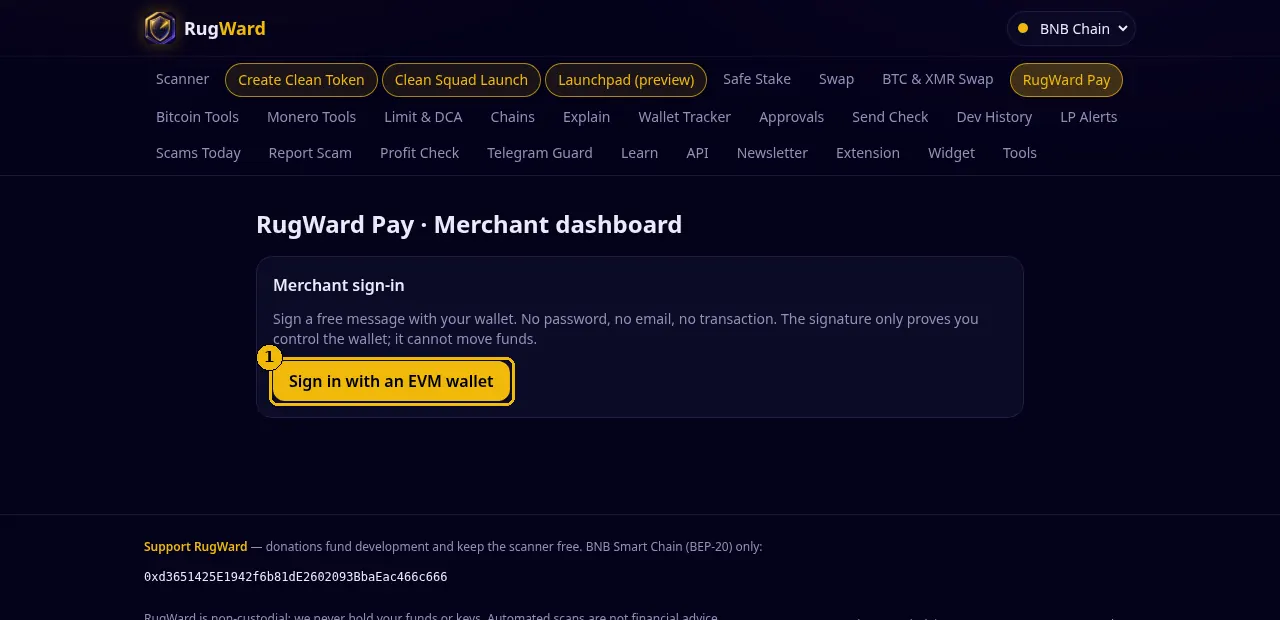
The message names the site, your wallet, a one-time nonce and the time. It looks like this:
rugward.com wants you to sign in to RugWard Pay (merchant dashboard).

Wallet: 0xYourWallet…
Network: EVM
Nonce: tZT87cgrCMOIwqGl
Issued at: 2026-10-30T01:21:09.907Z

This signature only signs you in. It is not a transaction, costs nothing and cannot move funds.A sign-in signature never costs gas. If your wallet shows a transaction, an approval or asks for a seed phrase, stop: it is not RugWard. RugWard never asks for your seed phrase or private keys.
What happens behind the scenes:
- The nonce is valid for 10 minutes and works once. It is bound to the rugward.com host, so a signature cannot be replayed on another site.
- Smart-contract wallets (ERC-1271 / ERC-6492) are verified on Ethereum mainnet.
- Your first sign-in creates your merchant account. The wallet you signed with is your merchant identity.
- The session is an
HttpOnly,Secure,SameSite=Strictcookie that lasts 7 days. Sign out clears it.
2. Settings: name and receiving addresses#
After signing in you see Settings. Everything you enter here is what buyers see and where they pay.
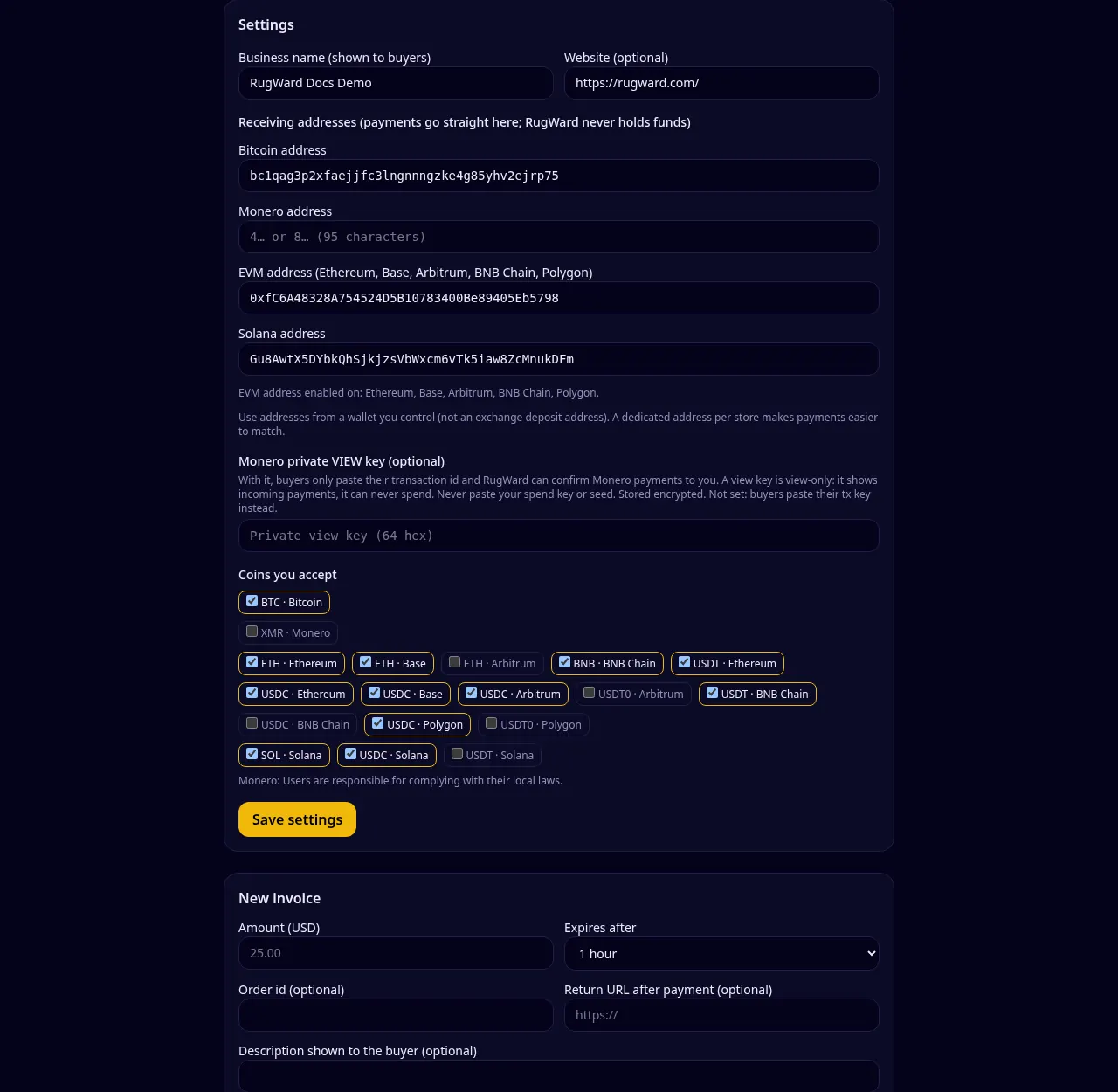
| Field | What to enter | Checks RugWard makes |
|---|---|---|
| Business name | 2–60 characters, shown to buyers on every checkout | plain text only |
| Website (optional) | full https:// address; buyers see the host name | https only |
| Bitcoin address | your own BTC address (bc1…, 1… or 3…) | mainnet checksum |
| Monero address | standard (4…) or subaddress (8…) | checksum; integrated addresses are refused |
| EVM address | one 0x… address used on Ethereum, Base, Arbitrum, BNB Chain and Polygon | token contracts refused, sanctions screening, chain check (below) |
| Solana address | your wallet's main address | token mints, programs and program-owned accounts refused |
Use addresses from a wallet you control, not an exchange deposit address (exchanges often do not credit payments from unknown senders correctly, and you cannot prove which payment is which). A dedicated address per shop makes payments easier to match.
Smart-contract wallets (for example a Safe). A normal wallet address works on every EVM chain. A smart-contract wallet only exists on the chains where it was deployed, and money sent to it on another chain could be lost. RugWard therefore checks your EVM address on every chain and enables it only where its code is found. The dashboard tells you which chains are enabled ("EVM address enabled on: …"). If a chain could not be checked at that moment, it stays off; save again later.
Every invoice keeps a snapshot of the addresses that were valid when it was created. Changing an address later never changes where an existing invoice is paid.
3. Monero: tx key or view key#
Monero payments are private, so RugWard needs proof that a payment went to you. There are two ways:
- Without a view key (default). After paying, the buyer pastes the transaction id and the transaction key (tx key). The tx key proves the payment to your address; it cannot spend anything. RugWard uses it once for the check and does not store it.
- With your private view key (optional). Paste your wallet's private view key (64 hex characters) in Settings. Then a transaction id alone is enough. RugWard checks that the key belongs to your Monero address, and stores it encrypted (AES-GCM). A view key can only see incoming payments; it can never spend.
Never paste your spend key or seed phrase anywhere, including RugWard. Only the private view key belongs in this field.
Monero amounts are checked against two public nodes that must return identical data. Users are responsible for complying with their local laws.
4. Choose the coins you accept#
Tick the coins you want to offer under Coins you accept. A coin is offered on new invoices only when it is ticked and you have saved an address for its network (and, for EVM, the chain is enabled for your address). See the full coin table.
Tips:
- Offer at least one stablecoin (USDC or USDT) so buyers can pay an exact dollar amount without price risk.
- On Base, ETH and USDC are paid through the 0.5% splitter; every other coin is fee-free during the launch promo.
5. Accept the merchant terms#
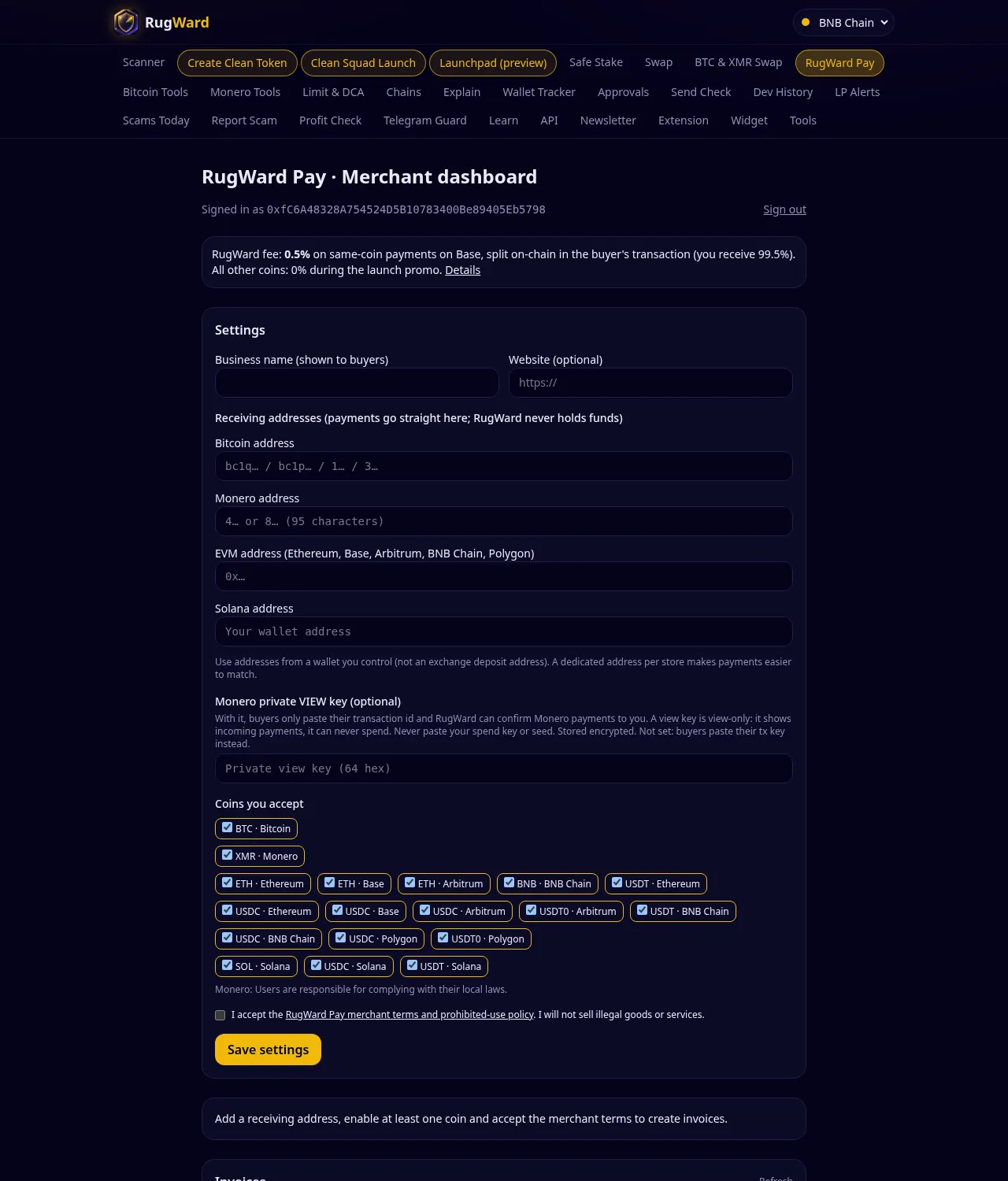
Tick I accept the RugWard Pay merchant terms and prohibited-use policy and click Save settings. Invoices and payment links can only be created after that. The terms forbid illegal goods and services, scams, money laundering, sanctions evasion and more; RugWard can suspend a merchant account that breaks them (it cannot touch funds already in your wallet).
6. You are ready#
The dashboard now shows New invoice, Invoices, Payment links and buttons, API keys and Webhook. Continue with Invoices, links and test payments, or connect your shop with the API.
Last updated: October 30, 2026